The Appearance section of the Settings screen holds two controls: Theme and Haptics. This article covers what each one does, and a difference between them that's easy to miss: one syncs across your devices, the other doesn't.
Theme
Theme is a segmented control with three options:
 Light
Light Auto
Auto Dark
Dark
Auto follows your device's OS-level light/dark setting. If your phone switches to dark mode at night, flangu switches with it.
Tapping an option applies it in two steps: the selected button updates immediately, and the actual color scheme follows a moment later. You may briefly see a small loading indicator next to the "Theme" label while this happens. This is expected, not an error.
The dark theme
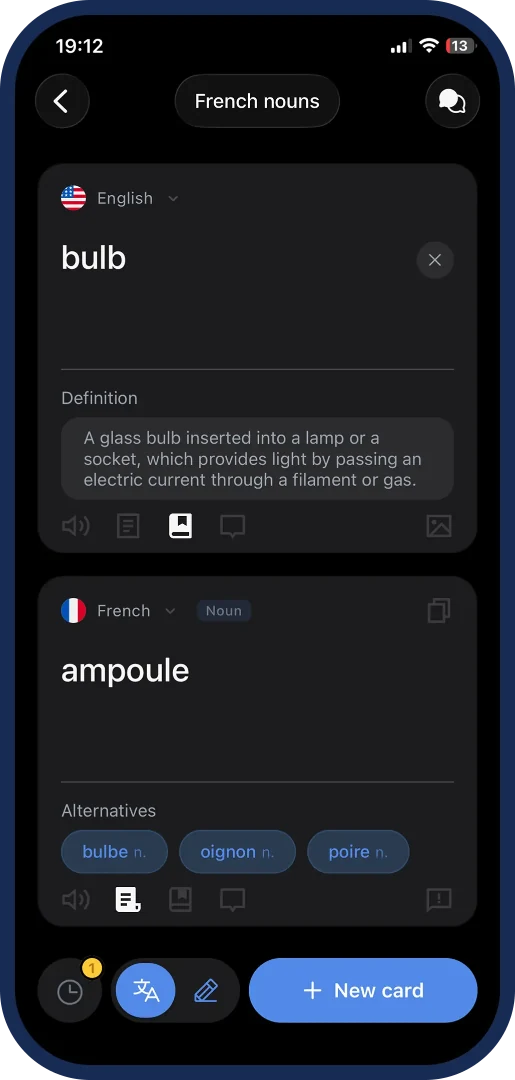
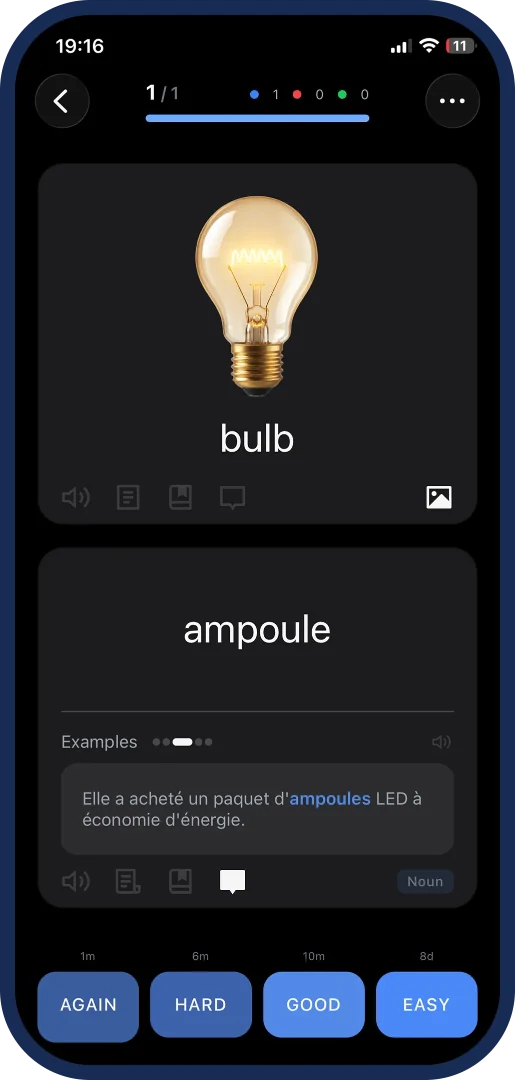
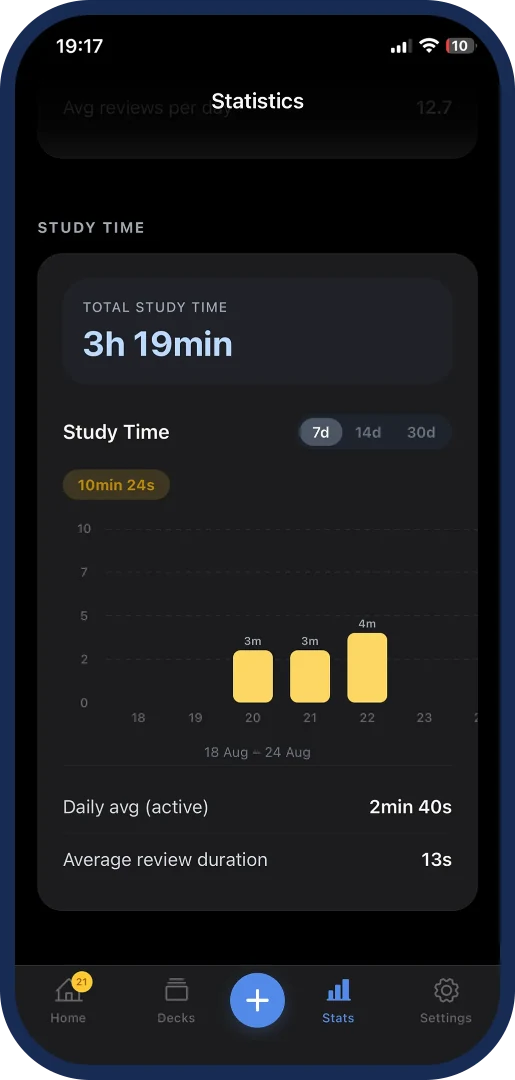
The dark theme covers every screen in the app, not just card panels: the same layout and controls, with a dark color palette throughout.
Note
Theme is saved to your account and syncs across every device you use flangu on. If you set Dark on your phone, it's Dark the next time you open flangu on another device.
Haptics
 Haptics is a single toggle that controls whether flangu vibrates in response to interactions, such as tapping a card during review. It's on by default.
Note
Unlike Theme, Haptics is saved only on this device. It doesn't sync to your other devices, and it doesn't survive a reinstall, since it isn't tied to your account. This is deliberate: you might want haptics on for your phone but off for a tablet.